Selling your first file with Kivoo
From creating your store to your first withdrawal — the complete journey to put a file on sale on Kivoo, step by step.
 L'équipe KivooKivoo team4 min read
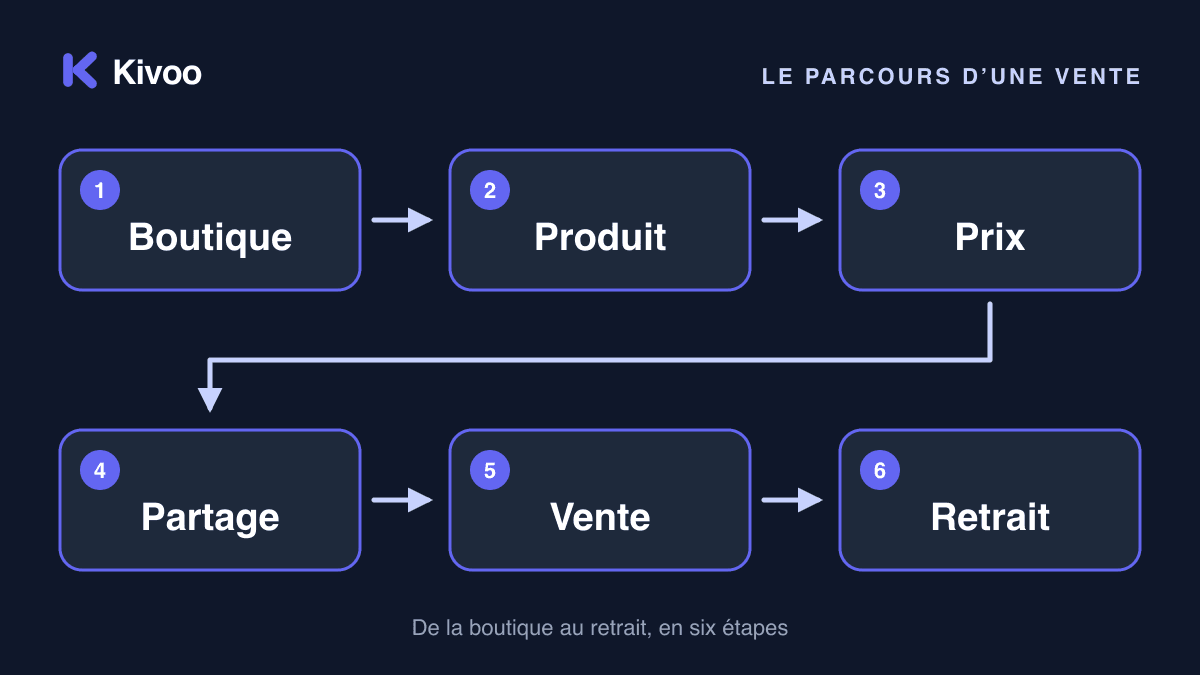
You have a file to sell: an e-book, a template, a cheat sheet. Here is the whole path, from the empty store to the first withdrawal. Allow a few minutes for the setup. No technical skills are needed.
1. Create your store
Go to the Kivoo dashboard. There is no password: you enter your email address and receive a code, or you sign in with Google, Facebook or X.
Once signed in, name your store. Kivoo derives its store address from it: your-name.kivoo.co. You can change it later under Settings › Domain name. This is the address your buyers will visit.
Also take a moment to add a logo and pick your colours in the settings. It is not required to sell, but a store that looks like you inspires trust.
2. Add your product
In your store, create a product of the file type. Give it a clear title and a description that says what the buyer will receive: the format, the number of pages, who it is for.
Then upload your file. A product can hold several, each up to 500 MB. The file is stored privately: nobody can reach it without a purchase. Wait until the upload is confirmed: only a ready file can be delivered.
If your product is a PDF, its first pages can be browsed for free on your store. That is a good argument before the purchase.
3. Set your price
Enter the sale price. It is exactly what the buyer will pay, no more, no less. Kivoo keeps a 10% commission on each paid sale; the rest is credited to your balance. For a product at 5,000 FCFA, you therefore receive 4,500 FCFA. The minimum amount for a mobile payment is 100 FCFA.
You can also offer a free product, for instance to make your work known. The pricing page lets you simulate any amount.
4. Publish
A product stays a draft until you publish it. To go live, it needs a title, a price (free or an amount) and at least one ready file. Publish when everything is in place: the product appears on your store right away.
You can unpublish it at any time, fix the description or replace a file. Careful: you cannot remove the last ready file of a published product without unpublishing it first.
5. Share your store address
Your store is live, but nobody knows it yet. Share its address where your buyers are: your Instagram or TikTok bio, your WhatsApp status, your email signature, your YouTube channel. You can also share the address of the product page directly.
One tip: say in one sentence what the file brings, rather than what it contains. “The planner that saved me three hours a week” beats “Excel template, 4 tabs”.
Your first product does not need to be perfect. A useful file, a clear title, an honest price: publish, watch the first sales, improve afterwards. You can edit your product at any time.
6. Receive your first sale
When a buyer pays, you receive a “New sale” email with the product, the amount and the order reference. A notification also appears under the bell of your dashboard, and a text message is sent to you if you registered a Cameroonian mobile number.
You have nothing to do: as soon as the payment is confirmed, Kivoo sends the buyer an email with a download link for each file. The sale appears in the Sales section, and your balance grows by the sale amount minus the commission.
To understand in detail what happens on the buyer's side, read Mobile money: how your buyers pay.
7. Request a withdrawal
Your balance is visible in your dashboard. When you want to collect it, open the Withdrawals section and create a withdrawal request: the amount, the operator and the mobile money number that will receive the money. A store has only one request in progress at a time.
The Kivoo team reviews the request, then starts the transfer to your number. You are told by email at each step: request received, approved, paid. Kivoo charges no withdrawal fee.
What next
Add a second product. Reply to the messages visitors send you from your store's contact form. And if a point of this guide is unclear, write to us at support@kivoo.africa.